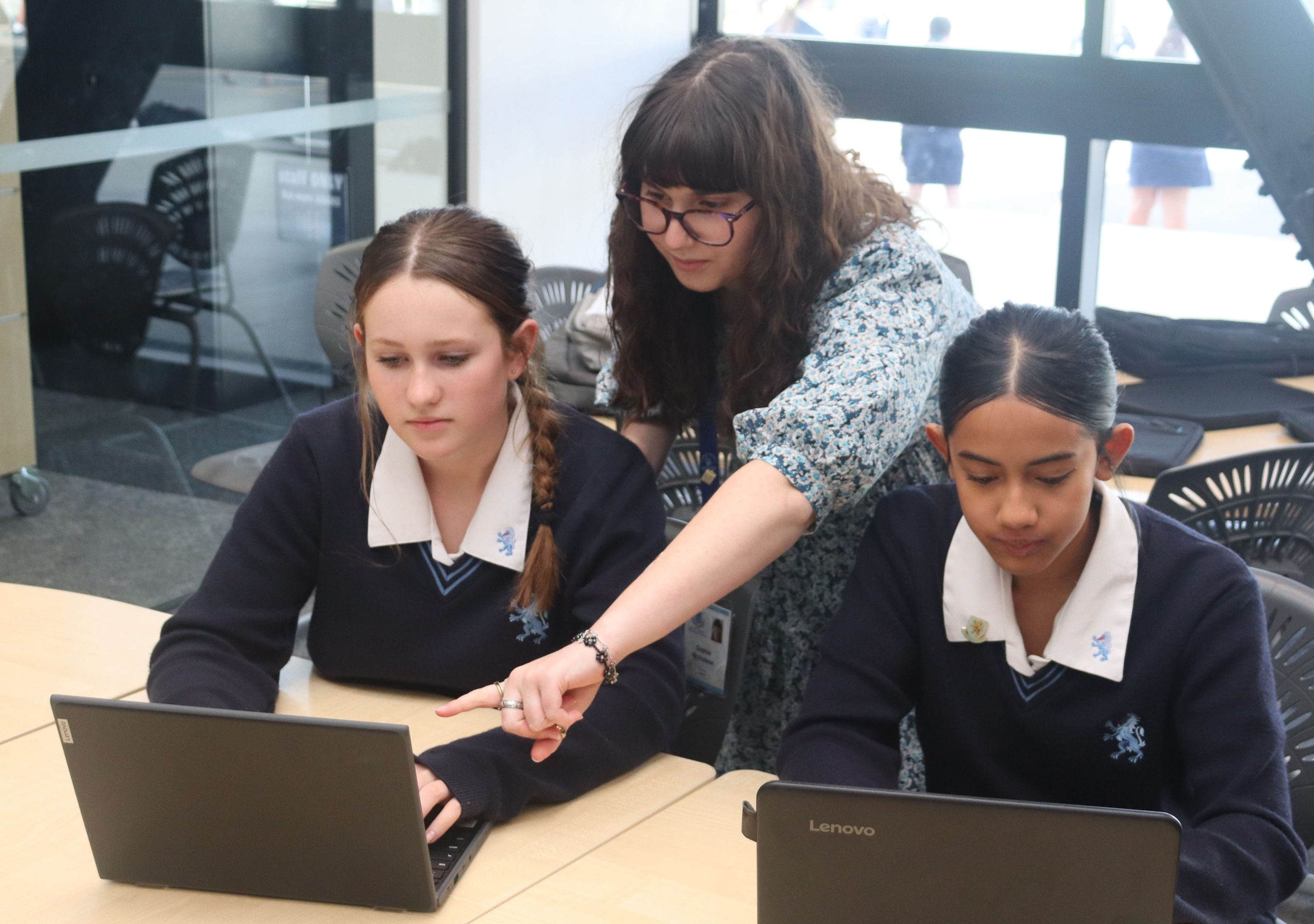
The information on this page is designed to assist parents and students access our systems.

All year 9 students have a BYOD orientation lesson at the beginning of Term 1. Other new students who arrive at the beginning of the year will be asked to collect their login information and orientation booklet in the first week. Please note that new students who arrive during the school year need to come to the ICT Department in L Block to collect this login information and orientation booklet.

If you have any queries about student devices, please email [email protected].

Setting Up School Email

School user names all follow this pattern:

[email protected] (e.g. [email protected])

It is important that you know that the school’s mail is not set up using Gmail. You cannot use a Gmail app to set up your school email as well.

Windows and Mac Laptops
Students should download and install the Office apps by going to MAGS website > Student Portal > Office 365 – Portal Page > Install Office > Office 365 Apps. After installing the apps open Outlook and sign in with the school email and password. (If using Apple Mail, then you choose the Microsoft Exchange option for type of mail.)

(Note: Students have to accept any prompts for permission they may receive.)

With wifi connected for your iPad, Android device, Windows laptop or MacBook as instructed above, open the Outlook App and enter your email address, e.g. [email protected] (Note – make sure you have the “s” at the end of students) and password. Follow the instructions on screen.

For Chromebooks (and online mail on any device)

Go to the MAGS website – Student Portal > School e-mail
Bookmark (Favourite) this site on your Bookmarks (Favourites) Bar

iPads
Students should download and install the Outlook app from the App Store > Open the app and sign in with the school email and password. The Outlook app should be in your dock. If a focussed inbox is offered – please do not accept the offer. It means students end up having two inboxes to check. (If using Apple Mail, then you choose the Microsoft Exchange option for type of mail when the choices appear.)

Android Devices
Students should download and install the Outlook app from the Google Play Store > Open the app and sign in with the school email and password.

Accessing Google Classroom

Students cannot access Google Classroom with a private Gmail account.

Google Classroom must be accessed via their school Google account.

To ensure student access, there is a Google Classroom – School Login link in the Student Portal . Here is a direct link.

Students should bookmark (or favourite this link for quick access in the future.) Their school Google account uses their email address and password.

Resources Available Through the School

The following are accessible via the internet and can be found through the student login page:

  • All Microsoft software: Word, Excel, Powerpoint, etc.
  • All Google Workspace for Education Plus software: Google Classroom, Google Docs, Google Drive, etc.
  • Canva
  • Education Perfect
  • MAGS e-book library
  • MAGS online library – includes access to the catalogue, books issued to the student logged in, ability to reserve and renew books
  • eTV – Access to thousands of videos and film recorded from TV
  • ClickView – Access to thousands of videos made for the classroom
  • E-Chalk – educational simulations
  • World Book Online – highly rated encyclopedia
  • EPIC Research Databases

Connecting to the School Wifi Network

Students should connect to the “MAGS-BYOD-5Ghz” network using their school username and password.

Usernames follow this pattern: username@students.mags.school.nz (e.g. eclarke@students.mags.school.nz)

Microsoft Office Setup (Office 365)

This programme provides free access to both Windows and Mac versions as follows:

Office 365 (for Windows) is a full version of Office with Word, PowerPoint, Excel, Outlook, OneNote, Teams, Access and Publisher.

Office 365 (for Mac) has Word, PowerPoint, Excel, Teams Outlook and OneNote. (Access and Publisher do not have a Mac version.)

Students can install the software on  Windows or Mac computers. You can also install available Office apps onto phones and tablets.

The software has the same features and functions as other versions of Office and can be used offline; students, however, must connect to the Internet once every 30 days to verify they are still eligible for the programme.

Downloading and Installing Office 365

  • Go to the Student Portal on the MAGS website
  • Click on Office 365 – Portal Page
  • Log in using your school email address ([email protected]).
  • Your password is your school (KAMAR) password. If you have forgotten this, you will need to go to ICT)
  • Click on the words Install Office on the top right of your screen.
  • Install the software offered after the installer has downloaded.
  • You will have access to all features if you sign in with your MAGS e-mail address and password.

Please remain connected to the internet until the installation is complete.

How long can I keep my licence?

Students enrolled at MAGS are eligible for the Office 365 Pro Licence. When the license expires, students retain read-only access to their Microsoft Office files.

Office for iPad and Android Apps – Word, Excel, PowerPoint

You can download these iPad and Android apps for free from the Apple and Google Play Stores and will have access to all features if you sign in with your MAGS e-mail address and password.

Adobe Creative Cloud Purchasing and Setup

Adobe Creative Cloud device licences are again available to our students for an annual subscription. The cost for 2025 is $13 for the whole year. This licence will remain valid until a student leaves the school. This means that the licence will cease in early December for year 13 students. If a student leaves the school during the year, the licence will also cease.

An Adobe Creative Cloud licence includes all the latest Adobe Creative Cloud desktop apps. It includes all the latest Adobe mobile apps. The licence also includes file sharing and syncing.

The Adobe software programs that we use in the senior school include Photoshop, Light Room, Illustrator, InDesign, Premiere Pro and After Effects. These are the current industry standard programs for designing work for print, web and moving image.

A student may install the software on a laptop and on a machine at home, but only use Creative Cloud on one computer at a time.

The School can only offer licences to our students with a school email address, not to families.

Adobe Creative Cloud is not required, but access on a home computer or personal laptop provides students studying NCEA courses in Art Design, Photography and Media Studies with a significant advantage. The software is also useful for many other subjects like DVC, Technology and Digital Technologies

Payment for a 2025 subscription is requested to be made by Tuesday 11 February 2025. We make the order according to payments made.


Please follow the procedure below to purchase Adobe Creative Cloud.

Remember the deadline is 4.00pm, Tuesday 11 February

Payment method 1: 

Ensure you have set up a MAGS Kindo account

Log in here

MAGS Kindo Shop

Log in and click on the Subscriptions tab

Select Add to cart for 2025 Adobe Creative Cloud

Go to the Cart, then Checkout.

You may have to top up your Kindo account before proceeding to pay.

Payment method 2:

Pay at the Finance Office when it is open during term time. We prefer that you pay using Payment method 1


– New licences will be activated in February, 2025

– Processing earlier will happen if spare licences are available.

– If you have a 2024 licence, your account will continue to work if you pay the 2025 subscription by Tuesday 11 February, 2025.

Please do not email that you have paid.

The Finance Office will provide that information to ICT staff who will manage your licence.

Students can access and use all Adobe software programs on their laptop or home desktop computer for 12 months if still attending the school. The licence is for Windows or Mac Computers. It is not available for Android tablets, iPads, nor Chromebooks, although some mobile apps are available.

This offer is available to all students at Mount Albert Grammar School. Although this offer is in place to assist senior students, junior students also wanting to have an Adobe Creative Cloud annual subscription may do so.

If you have any queries with regards to this offer, please contact Mrs Elise Goddard, the Director of E-Learning, via email, [email protected]

VPNs and Antivirus

VPNs are not permitted on BYOD devices  or any device connected to the school network, including phones.

Some antivirus software contains VPNs. Please ensure that these VPNs can be turned off before purchasing or installing them on

BYOD devices as they are likely to cause wifi issues.